In this guide we’re looking at How to use Apple Bluetooth Headphones and how to get the absolute best our of your gorgeous new apple AirPod headphones.
In This Guide
Getting to know Apple’s AirPods

Above: Apple Airpods – Amazon UK
Welcome to the wonderful world of tangle-free music bliss.
Apple’s AirPods are proving a big hit with Apple iPhone users (and non-iPhone users too!) It’s easy to see why. They’re packed with a space-age amount of technology and are super-simple to use. Let’s take a quick look at some of their ‘best bits’
- Ear sensors – Apple AirPods know. They know when you’re taking them out. It’s a clever trick. But it’s just that. No magic I’m afraid. They come with a clever little ear sensor that detects when you take one, or both of them out of your ear. One of the best things about this is it will auto-pause playback. Great if you’re in a hurry.
- You can interact with them – AirPods have lots of interesting bits of Apple tech inside of them that go to making them a cool product. One of them is the accelerometer. A gadget that will detect any touches like a tap. Double tapping them gently will start Siri, for example.
- Bluetooth range is really impressive – Remember when you had to carry your phone around the house with you while listening to music? The AirPods have an impressive 45 – 50 feet range. (More in open spaces). That gives you a lot of freedom from not only the old cable, but also lets you wander away from your phone, or just keep it safely tucked away in your bag.
The quick way to pair AirPod headphones and iPhone
Pairing your Apple AirPods with your iPhone is actually one of the easiest bits of How to use Apple Bluetooth Headphones guide. It takes a shorter time to do than it will take to read this next section. Once completed, you shouldn’t need to do it again. In fact, pairing just one of your apple devices will pair every one of them that use the same Apple account.
Step 1 – Turn on Bluetooth on your iPhone
The AirPods use bluetooth to connect wirelessly to your phone. So we better get that turned on first. To do this, open Control Centre (swipe down from the top-right corner on iPhones with Face ID, or swipe up from the bottom on iPhones with a Home button) and tap the Bluetooth icon so it turns blue. You can also switch it on in Settings > Bluetooth.

Step 2 – Hold the AirPods next to your phone
Once Bluetooth is on, the next part is easy. Move the AirPods next to your phone and the pairing screen should automatically pop up after a second or two. When this panel pops up, press the connect button on the screen.
Step 3 – Press and hold the little round button on the back of the case
On the back of the AirPod case is a little round button that’s easy to miss. Press and hold this down for a couple of seconds until you get the notification on your iPhone screen that the devices are paired.
Congratulations – your AirPods and your iPhone are now happily married.
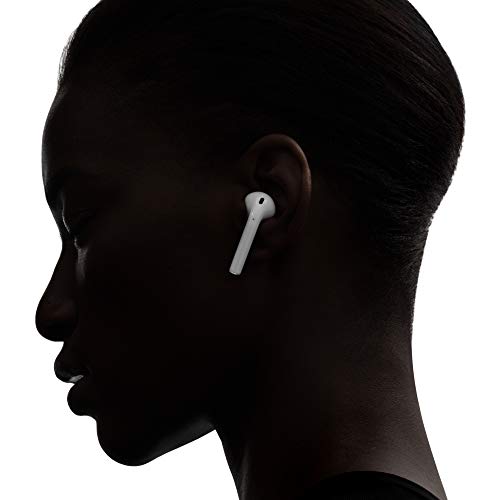
Above: Apple Airpods – Amazon UK
Compare AirPod Prices
If you’re looking to dive in and buy a pair if sexy new AirPods, but are wondering who has the best deal on them at the moment, fear not. Here’s a quick run down of the cheapest prices on Apple Bluetooth’s today.
How to pair AirPod headphones with Android phones

Don’t worry if you haven’t got an iPhone but really like the look of Apple’s awesome headphones. AirPods work exactly the same as they do with iPhones. Pairing them takes a few seconds more but it’s still very straight froward to set them up.
Step 1 – Turn on Bluetooth on your Android phone
Depending on your Android phone, you’ll need to go into settings and click on the Bluetooth icon to enable Bluetooth.
Step 2 – Open up your Bluetooth devices on your Android phone
Next click into your Bluetooth devices on Android and you should see the the names of several devices that are near your phone. Don’t worry, the AirPods shouldn’t be showing there just yet.
Step 3 – Open your AirPod case
Flip the lid open on your headphones case (they should be in their respective compartments). Check that the little LED light is lit up.
Step 4 – Press the ‘hidden round button’ on the back of the case
Look for the round button and press and hold that few a couple of seconds. Watch the LED light and make sure it starts flashing. Now release the button.
Step 5 – Press scan on your Android
The AirPods name might have popped up in the list of Bluetooth devices on your p[hone’s screen. If not, press the scan button on your phone. You should now see a name pop up with AirPods in it somewhere.
Step 6 – Tap on the AirPod name on your Android screen
Last step! Click on the Android phone, on the line with AirPods in them. Your wireless Apple headphones should now be paired with your Android phone.
Here’s a great video explaining how to do this
Warning! Protect your AirPod from this…
They can get scratched SUPER easily
If we had to sum up all this lovely new modern technology in one word, it would be simply: shiny. And Apple’s gadgets are the shiniest of them all. No doubt. The problem with this is that they’re all to easy to scratch. And the AirPods are notoriously easy to scratch up and ruin that polished futuristic glaze.
If you’re serious about your iPod think about investing in a case like one of the ones below. Yeah, there’s an argument that you’re missing out on seeing the cool shiny casing, but who cares. These cases keep your new AirPods all safely tucked away from keys, coins and other things just waiting to mark that pristine new case.
Careful you don’t drop them
While Apple stuff can generally take a bit of a beating (my dog literally chewed my iPad for around an hour and it still worked, ewww), you don’t want to go chucking something around too often that costs as much as the AirPods do.
The cable’s gone but so has the safety rope. There’s nothing to catch the buds now so a careless move will see them spinning down in slow motion to the pavement or, worse still, to a sods-law drain that just happened to be in the wrong place.
The main time to be wary of is putting them back into the case, not so much getting them out. And there’s nothing much you can do other than be extra careful with them. They’re small. They’re smooth and they’re way too easy to drop.
The proper way to clean your AirPod headphones

Earwax and dust build up on AirPods quickly, which muffles the sound and can make them uncomfortable. Clean them regularly, gently and dry.
- Wipe the outside of each earbud and the case with a soft, dry, lint-free cloth. A slightly damp cloth will remove stubborn marks, but dry the surface straight away.
- Clean the speaker mesh with a clean, dry, soft-bristled brush or a dry cotton swab. Use gentle pressure, so you don’t push wax into the mesh.
- Clean the ear tips on AirPods Pro. Take off the silicone tips, rinse them in warm water with a little mild soap, dry them completely, and put them back on.
- Clean the charging contacts inside the case and on the earbuds with a dry cotton swab, since dirt here can stop them charging.
- Never use sharp objects, don’t put anything wet in the openings, and never submerge or rinse the earbuds or case under a tap.
Which AirPods do you have?
Apple has released several generations, and the steps in this guide work for all of them. The main types are:
- AirPods – the standard open-fit earbuds. Simple, lightweight and easy to use.
- AirPods Pro – silicone tips, active noise cancelling and a Transparency mode that lets outside sound in.
- AirPods Max – over-ear headphones with noise cancelling, and a premium build.
Check the model on the case or in Settings > Bluetooth (tap the “i” next to your AirPods), since features and controls vary slightly between generations.
Controls: how to play, pause, skip and answer calls
Controls differ between models, so check the instructions for yours, but as a general guide:
- Older AirPods: double-tap either earbud, and choose what it does in Settings > Bluetooth.
- Newer AirPods and AirPods Pro: press or squeeze the stem to play, pause, answer calls and skip tracks. A single press plays or pauses, a double press skips forward, and a triple press goes back.
- Noise control on Pro models: press and hold the stem to switch between noise cancelling and Transparency mode.
- Take one out to pause. Ear detection pauses music when you take an earbud out, and resumes it when you put it back.
Check the battery and find lost AirPods
Open the case lid next to your iPhone to see the battery level of the earbuds and case. You can also add the Batteries widget to your iPhone’s Home Screen or Today view. If you lose an earbud or the case, the Find My app on your iPhone can show it on a map, and play a sound to help you locate it. Keep in mind that Find My works best if you enable it before something goes missing.
Using AirPods with a Windows PC, Mac or TV
- Mac: if you’re signed into the same Apple account, your AirPods appear automatically in the sound menu.
- Windows PC: open Bluetooth settings, put the AirPods in pairing mode (hold the button on the case until the light flashes white), and select them from the list.
- TV: some TVs support Bluetooth headphones directly. If yours doesn’t, a Bluetooth transmitter can send TV sound to your AirPods. See our guide to watching TV with Bluetooth headphones.
When using them with non-Apple devices, some features such as automatic switching, Siri and Spatial Audio may not be available.
Fixing common AirPod problems
- One earbud is quiet or silent: clean both earbuds, put both in the case for 30 seconds, and reconnect. Check the balance setting in your phone’s accessibility settings.
- They won’t connect: put both in the case, close the lid, wait 30 seconds, open it and try pairing again. Turn Bluetooth off and on.
- They won’t charge: clean the charging contacts and check the cable and charger.
- Short battery life: older AirPods lose battery capacity over time. Apple offers a battery service for AirPods, but often replacing older ones is the better option.
- Reset them: put them in the case, keep the lid open, hold the button on the back of the case for about 15 seconds until the light flashes amber then white, and set them up again.
- Sound drops out: keep your phone on the same side of your body as your ears, away from crowds of Bluetooth devices, and update your phone software.
Apple AirPod FAQs
We’ve compiled a quick list of the most commonly asked questions we see for Apple’s Bluetooth headsets. If there’s anything else you’re stuck on, please let us know in the comments below!
Will they work with any other phones and tablets?
Although they’re made by Apple, these are, technically, just Bluetooth headphones. They can be paired with… pretty much any device that has Bluetooth and can play some kind of music.
Do you need to have your phone on you?
Nope, one of the best things about Bluetooth headphones is you’re completely free to get on with your work, anywhere so long as there’s around 40 feet between you and the device, you’ll be fine. Ideal for cooking, working and anything else you need your ‘hands-free’.
What do you charge them with?
AirPods charge in their case. Earlier cases use Apple’s Lightning port, and newer models use USB-C, so check which your model has. Put the earbuds into the case and connect the cable to the case. Many cases also charge wirelessly on a Qi or MagSafe charger. The earbuds have small metal contacts that connect inside the case.
Which iPhones do Apple Bluetooth headphones work with?
There are a LOT of different iPhones out there at the minutes. The good news is that AirPods work with a wide range of iPhones, but each generation needs a minimum version of iOS, so check the requirements for your model on Apple’s website and update your iPhone’s software if pairing fails.
Do you get a charging cable?
Yes. A charging cable is supplied in the box (Lightning on earlier models, USB-C on newer ones). You’ll need your own USB charger or a computer port to plug it into.
Can you use these Apple Headphones with iPads?
Yes you can. Even the older iPads will be able to connect to any of the AirPods in exactly the same way as mentioned above.
How does answering a call work?
So you’re minding your own business, listening to your tunes and you get a call. What happens? The AirPods will let you know there’s a call (thanks Siri!) And you can double-tap the headphones if you want to take the call. If not, let them talk to the machine and you enjoy those sweet tunes. *
* Unless it’s your boss.
Thanks for reading out little guide on AudioPunch on how to use apple Bluetooth headphones. If there’s anything we’ve missed, please let us know in the comments. Have you got a paid of AirPods? How are you finding them?